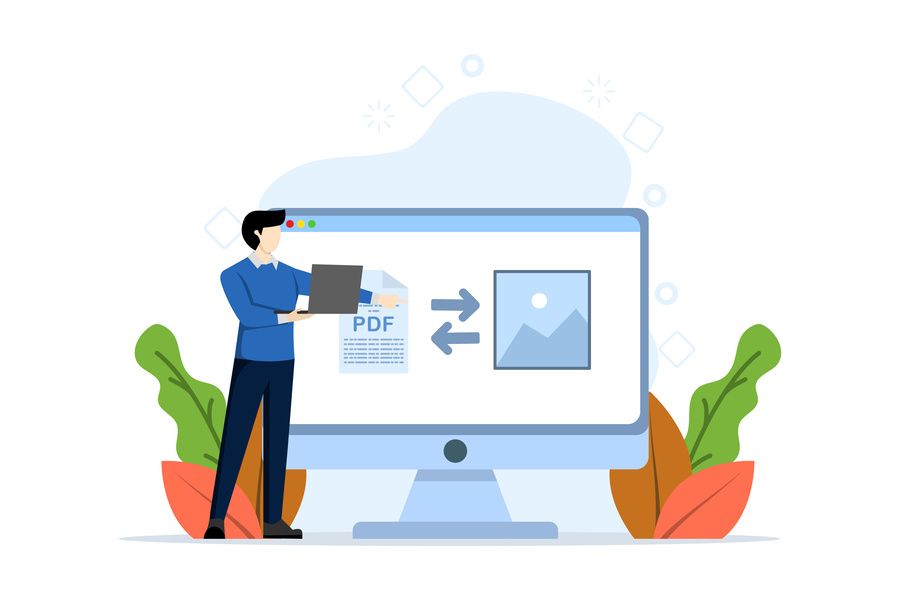
You need images from a PDF but not the entire document. Or you have to upload pages from a PDF to a platform that only accepts images. Or you want to share a specific page quickly without sending the entire PDF. Converting PDF to JPG solves these problems, but it's not always the best option for everything.
Understanding when it makes sense to convert to images and when it is better to keep the PDF saves you time and avoids unnecessary loss of quality. A PDF converted to JPG loses some of the advantages of the original format: you cannot select text, the file size may increase, and the quality may degrade. But it gains in universal compatibility and ease of use.
When does converting PDF to JPG make sense?
If you need to share specific pages of a long document on social media or messaging apps, JPG is more practical. Sending an image is faster and can be viewed directly without anyone having to open a PDF.
When you work with platforms that do not accept PDFs but do accept images. Many web forms, content management systems, or mobile applications only allow photos to be uploaded. Converting your document to JPG solves the problem.
To create thumbnails or visual previews of documents. A JPG image of the first page of a report works well as a preview in presentations or on websites.
If you need to edit the content with image editing tools. Retouching a scanned image, adding visual watermarks, or modifying graphic elements is easier in image format than in PDF.
When is it best to keep the PDF?
If the text in the document is important and someone needs to copy or search it, keep the PDF. Converting to JPG converts all text to image, making it unselectable and unsearchable.
For documents that need to be printed in high quality. Vector PDFs remain sharp at any size. A JPG may appear pixelated when enlarged or printed in large format.
When the file has multiple pages that need to be kept together. Converting a 50-page PDF to JPG generates 50 separate image files. Managing so many files is cumbersome compared to a single PDF.
Fast online converters
Web services perform the conversion in seconds. Smallpdf, iLovePDF, PDF2JPG, and Zamzar offer free conversion from your browser. You upload your PDF, choose whether you want all pages or just some, select the quality, and download the resulting JPGs.
Most let you choose the output resolution: low, medium, high. Higher resolution means sharper images but larger files. To use the images on the web or send them via messaging, medium resolution is usually sufficient. For printing, you need high resolution.
These services process each page of the PDF as a separate image. If your PDF has 10 pages, you get 10 JPG files. Some services compress them all into a ZIP file to make downloading easier.
The usual limitations apply: maximum file size, number of conversions per day in the free version, watermarks in some cases. For occasional use, they work perfectly.
Adobe Acrobat for professional control
Adobe Acrobat exports PDFs to JPG with many control options. You can choose exactly which pages to convert, the resolution in DPI, the colour format (RGB, greyscale, CMYK), and the JPEG compression quality.
This level of control is useful when the final quality matters. A graphic designer who needs images for a project, a photographer who needs to extract images from a PDF portfolio, situations where the default settings are not sufficient.
Acrobat can also extract only the images embedded in the PDF without converting the entire pages. If your PDF has photos inserted and you only want those photos in their original resolution, this feature directly extracts the images without any additional loss of quality.
Free desktop methods
Windows and Mac have built-in tools that can do the conversion. In Windows, you can open the PDF with Edge or Chrome and use the print function by selecting ‘Microsoft Print to PDF’ but printing to a virtual image printer such as Microsoft Print to JPG (if installed).
On Mac, Preview can export PDFs to various image formats, including JPG. Open the PDF, go to File > Export, select JPEG as the format, and choose the quality. Simple and effective.
GIMP, a free, cross-platform image editor, can open PDFs and export each page as an image. You have full control over resolution, quality, and output format. It requires more steps than automatic converters, but you don't have to rely on online services.
Batch conversion
If you need to convert multiple PDFs to JPG, doing it one by one is tedious. Some online converters allow you to upload multiple PDFs at once. Desktop software such as IrfanView or XnConvert can process many files sequentially.
Batch conversion is especially useful if you have to process files regularly. You set the parameters once (resolution, quality, output folder) and the programme processes all files automatically.
Quality and file size
The quality of the resulting JPG depends on two factors: resolution (how many pixels) and compression (how much the file is compressed). Higher resolution and lower compression result in better quality but larger files.
For sharing on the web or mobile devices, 72-96 DPI with medium compression (quality 75-85%) works well. The images look good on screen and the files are not huge.
For printing, you need at least 150-300 DPI depending on the final print size. A 72 DPI JPG will look pixelated when printed on paper, even if it looks perfect on screen.
If you convert a PDF that was already low quality or poorly scanned, the resulting JPG will not be any better. Conversion does not improve the original quality, it just maintains what was there or potentially makes it worse.
Extract only specific images
Sometimes you don't need to convert entire pages, but only extract certain images from the PDF. Many tools allow you to do this: you select the exact area you want to convert and only that part is saved as a JPG.
Adobe Acrobat and some advanced online services offer this feature. It is useful when the PDF has infographics, charts or photos that you want to use separately without the surrounding text.
PNG vs JPG for PDF pages
JPG is good for photographs and pages with lots of colours or gradients. PNG is better for pages with sharp text, simple graphics or areas of solid colour. PNG also supports transparency, which is useful if you need to place the image over other backgrounds.
If you are converting PDF pages with mainly text, PNG may give better results with sharper text. JPG tends to create artefacts around text that make it look slightly blurry.
The disadvantage of PNG is that the files are larger. For a page with text, a PNG can be twice as large as a JPG of similar quality.
Conversion and OCR
If you convert a PDF to JPG, you lose any selectable text it had. The image is just that, an image. If you need the text later, you would have to apply OCR to the JPG images.
If you know you will need the text later, it is better to convert the PDF to Word first to extract the text, or keep the original PDF as a reference along with the JPGs.
Combine with other operations
Sometimes you need to do several things: convert to JPG, but also crop, rotate, adjust brightness. Some online services offer basic image editing after conversion. Software such as GIMP gives you full control.
If you need to compress the resulting images because they are too large, tools such as TinyJPG, Compressor.io or JPEGmini reduce the size without any visible loss of quality.
It's an extra step, but it's worth it if you're going to share the images online. Keep metadata or delete it JPG images can contain metadata: information about when the file was created, with which camera, GPS location if applicable. When converting PDF to JPG, some converters automatically add metadata.
If you are going to publish the images online and are concerned about privacy, clean the metadata first. Tools such as ExifTool or online metadata cleaning services remove this hidden information.
Converting JPG back to PDF
If you convert PDF to JPG but then need the images back in PDF format, you will have lost quality in the process. Every conversion between compressed formats (such as JPG) introduces degradation.
If you know you will eventually need the PDF again, consider whether you really need the intermediate JPG or whether you can reorganise the original PDF to have only the pages you need.
Converting PDF to JPG is a technically simple process, but it requires thinking about the end use. There is no point in converting if you are going to lose functionality that you need. But when you need images to share quickly, publish on specific platforms, or edit visually, converting to JPG is the right tool. Choose the appropriate quality depending on where you are going to use the images, and always save the original PDF just in case.
Convert PDF to JPG
Import a file